I have today activated the two-step login verification for my Google account. It was not complicated at all and not hard but it raises the security quite a bit when it comes to getting your accound hijacked. The principle is easy and I will explain how it works here.
For computers that you use to access your GMail account, Picasa account, Google+ or any other other services that runs through your Google account it means that if you are using a new computer at a friend’s house, at the internet café or at the library you should bring your phone. When you log in a code is sent to your phone by text message that you need to enter as well as your chosen password. This way it becomes much harder for someone to hack your account.
Other devices that are using your Google account, such as smartphones, pads and so on can be given separate passwords that are hard to guess and remember and can be revoked at any time. If you loose your phone, you can revoke the password and your phone can not be used to access your personal info any more.
If you are in a place where there is no coverage there is an app that will generate time-based one time logon passwords for Android, iPhone and Blackberry. You may also in advance print a list of one time codes on paper and take with you when you travel, allowing ten computers on your trip access.
At your Google accounts page you may also input alternative mobile phone numbers, create security questions and alternative e-mail addresses in case you need to recover a lost account.
Do not hesitate, go and sign up for your two-stage login now. Every day people get their accounts hijacked, they have someone they know spy on them because they forget to logout and so on. If your account gets hijacked it means your documents at Google docs are lost, your mail as well and so on…
Therefore it is time to activate the 2-step verification right now. Click here and get your business in order! accounts.google.com
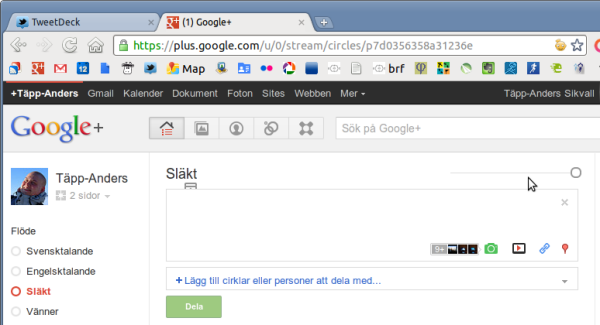
Det har dykt upp en ny liten men väldigt efterlängtad kontroll i Google plus ungefär där muspekaren i bilden nedan befinner sig. Det är en kontroll som gör att man per flöde kan bestämma vilka inlägg som syns i huvudflödet och det är väldigt användbart.
Klicka först på flödet du vill bestämma inläggens frekvens från och sedan kan du dra reglaget till vänster och höger. Det har fyra lägen som vi kan numrera längst till vänster – 1, till vänster om mitten – 2, till höger om mitten – 3 och längst till höger – 4.
1 – Visa inga inlägg från flödet i mitt huvudflöde
2 – Visa färre inlägg från flödet i mitt huvudflöde
3 – Visa det mesta från flödet i mitt huvudflöde
4 – Visa alla inlägg från flödet i mitt huvudflöde
Folk man inte vill se längre lägger man alltså i flödet ”dumskallar” och sedan drar man spakan till läge 1 för det flödet. Borta. Men man kan fortfarande titta på flödet i sig vid behov. Om folk ingår i mer än ett flöde verkar det vara det mest liberala flödet som bestämmer vilka inlägg som syns. Dvs om du har en person, vi kan kalla hen för Kim som ingår i ett flöde ”Svensktalande” och ett annat flöde ”Fotografer” och kanske ett tredje flöde ”Bekanta” och du ställer reglaget på läge 1 för Svensktalande (eftersom både folk du vill och inte vill se finns i det flödet) men vill ha ”Visa det mesta” från flödet ”Bekanta” och eftersom du är fotografintresserad ”Visa allt” på flödet ”Fotografer” så kommer du se allt från Kim så länge hen finns som medlem i den kretsen.
Släktingar på läge 4, vill ha koll på dem. Vänner (alltså nära vänner) på läge 4, de är lite som min släkt. Bekanta på läge 3 och de jag följer likaså medan de jag har i min cirkel som Okända får vara på läge 2.
Jag har också generella cirklar som ”Svensktalande” och ”Engelsktalande” och de får stå på läge 1. Alla medlemmarna i dessa cirklar skall dessutom finnas i någon av de andra ciklarna så deras inlägg syns ändå.
Jag har också cirklar efter intressen och de jag arbetar med och liknande och de ställs om lite efter behov beroende på vad jag för tillfället söker. På det här sättet går det lätt och snabbt att skaffa sig ett flöde med mindre brus i och mer nyttosignal om analogin tillåts. Det är något som jag har lite saknat för nu kan jag prioritiera mina närmaste inlägg jämfört med folk jag följer lite halvt-om-halvt av intresse sådär.
En sak man skall komma ihåg är att de också slår igenom på mobilappen. Dvs det som syns på websidan när du är inloggad är samma som du har i ditt huvudflöde även i mobilappen. Detta är bra tycker jag, du kan dock inte komma åt att ändra kontrollen i mobilen vilket är lite synd men det kommer förmodligen gå att göra det med en kommande uppdatering.
Google is now launching an offline GMail version that runs like an app inside the Chrome web browser. This is exactly what I have been looking for and I find less and less reason to hold on to my Thunderbird installation.
This is also true for the Google Calendar application, same here, they have used the same technology as on the android platform to create this and sure enough, it looks very similar.
Since the Chrome browser has a very capable built-in database to handle things like that, the off line applications has been something I have looked forward to for a long time.
Google Sweden has a specially designed snowmobile that they are using with the google camera technology to creat a first person view of all the ski slopes in Sweden. The snowmobile has been spotted in several different ski slopes, large and small, documenting the whole slope.
You can expect an integration in ”StreetView” with the swedish ski slopes soon. Something that I believe ski enthusiasts will be happy for. You can virtually visit the ski slopes before you pack your bags and go there in person. Very handy…
I have just tried out Google Buzz, a twitter-like service from Google which is available through Google Mail right now. Clients are expected for mobile phones of various makes soon.
I like the concept although it’s not as innovative as twitter was when it came it is still a really good implementation of a social microblogging feature. That Google saves it in ”conversations” just like email threads is what makes it great. Even people you are not following are included in the conversations so they are quite complete and nice.
It integrates with many google services and Flickr, Twitter, Facebook and so on and your own web side if you have an RSS feed from it, therefore I think it is a great integrator of what you are doing.
People have however raised concerns over that if you join the service then anyone following are able to see the email addresses you routinely email with. I am not too concerned about this but you might want to think through this before joining.
Since I got my HTC Magic phone, the second generation Android operating system from Google and a lovely phone I have worked out using two different softwares that I would like to share.
These softwares are CardioTrainer and BuddyRunner, two wonderful applications to help you run well when doing exercise. Both offer similar features and are mainly aimed at runners that want to keep statistics on their exercise and perhaps also their competitions.
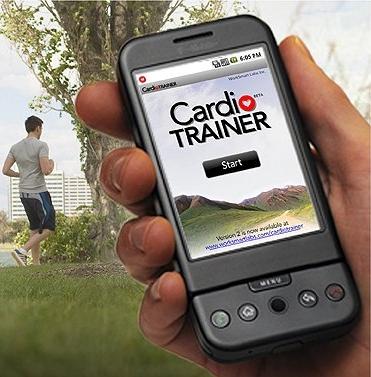
The Cardio Trainer Android application
But what do they do? To make a long story short they are both personal trainers and logging instruments that can upload your running data to a web site where you can review what you have done and compare runs over time.
They are using the GPS in the phone to log your position periodically and thus can calculate your speed. They also measure the time and therefore knows at all times your speed and pace, the distance you have ran so far and in what time you did it. If you are using earphones and listening to music on your Android mobile as you run they will muffle the music or silence it completely and announce the running data periodically.
Feature-wise they are very similar, CT offers more settings to smooth out GPS positions during a run which can be good if you get bad measurements occasionally but won’t really help much in the long run, so to speak, but after testing the two producs side-by-side I can only conclude they are very similar in the distance they measure when running. The distance on both of them is perhaps a bit on the conservative side compared to distance measured on map or with a really good outdoor GPS (Magellan eXplorist XL) which shows a slightly longer track most of the time. Not certain why this is but they seem to be on the conservative side. My 2 km track registers as 1 850 meters roughly and that is 7.5% on the conservative side.
CT has a huge disadvantage for us Europeans, the tracks it records are shown in metric units on the handheld if you set it up to do so, but on the website everything is by imperial measurements which is really sad because it is otherwise a very good application. I have written them and they are looking into developing it. In fact there’s been two new versions of CardioTrainer released recently both with some small improvements.
The Buddy Runner
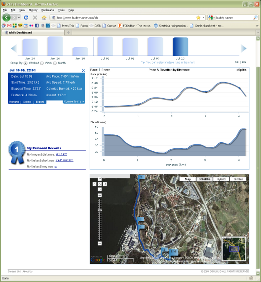
BuddyRunner however has a really wonderful web site where you can see the run on a Google Maps interface, statistics on your run such as pace for each part of the run, and elevation. It is interesting to see the elevation go up and the pace time per km increase at the same time. You can compare several runs (up to three) download your running track and it keeps tracks of your records, longest, fastest and so on. Over all it is a much more developed web site than CardioTrainer has. However the application on the handheld is less sophisticated, it does not have the same filters and settings as CardioTrainer does and when it speaks to you it always abruptly pauses the music, the CardioTrainer can lower the volume but keep the music running which is better if you are trying to keep your pace to the music.
In the phone however both applications are very similar however and the settings screen also offers settings to change the announcer frequency and the contents of the announcing messages. BuddyRunner performs well int he background but CardioTrainer wants to run in the foreground, otherwise it pauses. CardioTrainer can also automatically play a certain playlist of music for you while BuddyRunner just leaves the music player alone.
Example of the website for Buddy Runner, click to check it out in reality.
Sharing your things with others is easy on the BuddyRunner, the application and webside can write RSS feeds to your Facebook, Twitter or Friendfeed site and so on, you may show your dashboard to anyone you like, they can’t manipulate it unless you log in but they can leave a comment on your run if they want to.
CardioTrainer has a secret passcode to the webside, you can not display it without this code and when you enter the code you may also remove runs and modify the content, so you would not want to post that publicly. There is also right now no integration with Facebook, Twitter and similar sites, no RSS feeds and the tracks can not be downloaded from the site.
In the end the factor that is the most deciding one for me is the website. BuddyRunner has a much better web site and I love the feature that you can download your runs in GPX format to have them displayed on Google Earth or some similar mapping software if you like. Great stuff!
En del har ogillat placeringen av de svenska tangenterna på HTC magic och att de inte ligger helt lättåtkomliga på det fullständiga QWERTY-bordet.
Det finns nu en uppdatering till applikationen Scandinavian Keyboard som kan laddas ned via Android Market och installeras.
När detta är installerat går man in i ”Settings” letar upp ”Locate & Text”, kryssar i ”Scandinavian Keyboard” där. Sedan under fliken ”Scandinavian Keyboard” väljer man svenskt tangentbord.
Det sista man behöver göra är sedan att man står vid ett inputfält och gör ett långt tryck. Då kommer en meny upp där man kan välja ”Input Method”. Välj detta alternativ och sedan ”Scandinavian Keyboard”.
Nu har du ett ersättningstangentbord som kanske fungerar bättre.
If you have like me used the HTC Magic built-in magnetic compass for a while you might have noticed that it is not always properly aligned. Here is a procedure to re-calibrate the compass and accelerometers in the mobile so that it should give you pretty accurate readings once more:
It does not matter if you are running any special software or not but I recommend you put the phone in the desktop home state.
Make sure you are standing in an open space, preferably out doors, away from power lines, rail roads, large magnetic objects.
Hold it flat with the display facing the sky. Hold it steady and make sure you do not drop it in the next moment!
move it in front of you in large figure-8 patterns in five complete rounds.
Hold the phone upright with the display facing your belly.
Repeat the figure-8 movement again for five complete rounds.
The calibration of the compass and accelerometers should now be pretty good.
If at any time you feel the compass is not showing you the right direction or seems ”stuck” even if you are turning, then repeat this calibration and it will come alive again. Certain applications such as the metal detector application may also screw the calibration and you might need to repeat this after using such software.
Om du som jag har använt dig av HTC Magics inbyggda kompass ett tag så har du kanske märkt att den inte alltid visar så rätt. Här nedan följer en procedur hur man kan få den kalibrerad enkelt och visa rätt igen:
Det spelar ingen roll om du kör någon sorts mjukvara eller inte men jag rekommenderar att du stänger av program och låter den vara på den vanliga desktopen.
Se till att du står bra i ett öppet område, helst utomhus och inte i närheten av kraftiga magnetiska fält eller objekt.
Håll telefonen platt i handen med displayen rakt upp mot himlen. Tappa den inte i nästa moment!
För telefonen i stora åttor framför dig i åtminstone fem hela varv.
Håll telefånen nu med högtalaren rakt upp och displayen mot din mage.
För telefonen återigen i åttor framför dig.
Accelerometrarna i telefonen skall nu ha hittat sin jämvikt och kompassen bör stämma relativt väl. Du behöver göra om denna kalibrering ca 1 gång om dagen i normalfallet.
So this is my new friend and toy. I have previously been an Ericsson fan until they released the ridiculous K600i telephone and then I switched to Nokia N95 for a short while and I detested the Symbian OS completely. So then I tried a Windows Mobile based HTC the Dual Touch model and my current work provides me with a HTC S740 which is also a windows mobile but with some nice features like GPS and so on. Last thursday however I went and bought myself the first big Android phone released in Sweden, the HTC Magic through the operator 3.
Just WOW!
I can honestly tell you that this mobile has become one of the best gadgets and most useful tools I have ever possessed and in a very nice package. The mobile looks a little bit like an iPhone, slightly smaller display area and with a few more buttons on the front side. However when it is started it is obvious that it har borrowed even more from the iPhone in terms of the interface but also it is far from the special locked down feeling that I get from all Apple’s stuff.
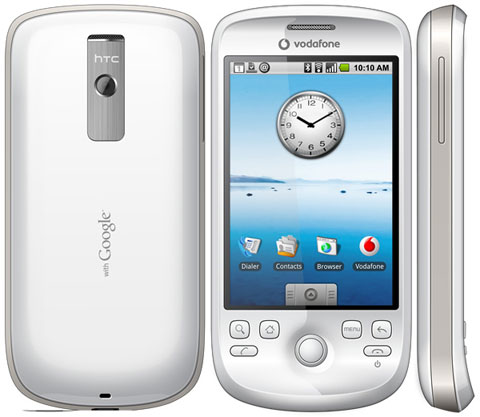
The great Google Mobile! Picture shows a Vodaphone mobile, mine is without that logotype but otherwise the same.
Connector
First of all the multiconnector contact on the phone is a slightly modified USB connector. The modification is only there so that you won’t insert audio connectors into a normal USB but they will fit your phone. However normal USB cables will fit the phone so you can connect it to any laptop or desktop PC or mac just like that with any normal USB connector.
The phone charges over USB and syncs really well. This has been the standard for HTC phones for quite some time now and I hope that other makers of phones will abandon their special connector solutions and just use a normal USB plug or a lightly modified one like HTC does.
Battery time
The battery is depleted quickly if you are surfing a lot, streaming music running the GPS and so on but if you are using it in stand-by mode it will keep you happy for a couple of days at normal use. In the beginning you will probably – like me – need to charge it nighly because it is just so fun to try all the features and bring up the GPS assisted maps, stream YouTube when you are bored and so on. Of course using heavy applications and lots of 3G and HSPA data networks will definitely use up the battery quickly.
But I have no complaints really, if you are conservative with you will probably not have to charge it more than every second or third day. It also recharges pretty quickly if you use the wall plug charger. Charging over USB from a computer that can only deliver 500 mA maximum takes of course much longer.
Software
The software for syncing and backing up is included on the phone. Connect it to your computer using the USB cable, then mount the SD card that comes with it and the sync application, manual et cetera is showing up on a removable disk volume. Just install the software straight from the phone and you are ready. Or look something up in the manual.
Adding your MP3 music is just as easy, just drag them to the music folder on your phone, allow the copy to finish and then you are done. The copying is pretty fast as well, seems to be USB2 which is so much faster than my older HTC mobiles that was taking forever to store music.
Oh, and the mobile can be used like normal whilst connected to the PC with the USB.
Android OS and Interface
The Android OS is developed by Google and this is obvious from start when setting up the phone since it asks for your Google online username and password. Once given to the phone it syncs the calendar and mail account with the online GMail and Google Calendar and many other services you might be using such as GTalk and so on. Lovely stuff if you like the G approach to online life then this phone is definitely for you! It also have mail applications that can handle Exchange mail and normal POP/IMAP accounts as well of course though I have not had much use with these yet and gmail is doing the job rather nicely for me.
The interface is smart, sleek and very fast. I have not been able to make the phone slow down yet with the applications I have been running. The menus just slides out and back again really smooth and nice. The settings in the phone is very logically arranged and it just takes seconds to find something you don’t have to hunt around in an obscure menu system and most of the things just works out of the box.
The on-screen keyboards
There are several of on-screen keyboard to chose from and whenever you touch something to type the phone gives a tactile response by a very short vibration. This is really great because most touch keys are difficult to see if you hit or not because even if the key gives a visual response the finger usually blocks the view! Great thinking here.
Swedish keys are located on one of the keyboards directly and in the others you will have to press the A button or O button down to bring up a row of accented characters and then slide your finger off to the Å, Ä or Ö characers as desired.
Sky map
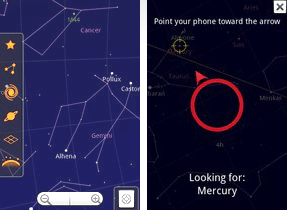
The mobile features a GPS receiver, a magnetic compass and accelerometric sensors that can tell how you are holding the phone. And of course google has released a real killer app to go with that, the google stars. Go out on a starry night, give the GPS a few seconds to locate your position (or use the cell towers to triangulate your position down to a few hundred yards accuracy) and then start the Google Stars app and hold the mobile up to the part of the sky you are viewing. Instantly the mobile will show you the stars and their names, constellations, where the polar star is and show you the positions of the planets and so on. I can’t really tell you how fun this is – you just got to try this out yourself. Incredible!
Navigation for car and by foot
Oh I already mentioned the GPS. It loads information over the network where the satellites are so it aquires a position within seconds when outdoor. If it can not find a GPS fix it will still give you pretty accurate position based on information from the cell towers if your operator supports this. The magnetic compass shows where you are heading and the GPS plots your current position on Google Maps. Now just find where you want to go and it will take you there. Really good for finding addresses, stores, shops, people… searching on the map ties in to many other databases on the Internet and usually gives you really accurate information. I am a jogger as you might have come to know by now.
One of the more esoteric application is a metal detector that detects ferro-magnetic materials. It’s quite funny and uses the compass of course to do this but it is great fun. It may even be useful to locate stuff in walls…
Geocaching
The phone with GPS and magnetic compass also have applications for Geocaching through the Application Market (where most apps are free) and I have tried out the GeoBeagle application which is a really great app. Press a key and it will take you to the Geocaching online site listing the closest caches for you that you have not already found. Select one of them and then press view as a google map and GeoBeagle snatches it up, shows you a directional compass where to go, distance, accuracy of your position and you are ready to go.
When you find it you just press a key to log your find (or DNF, did not find, as it may be) and you have logged another cache. So simple
Cardio Trainer application
Yesterday I found another killer app that you can use that plots your running on a google map, keeps track on your progress in tempo (minutes per km or mile) and distance and time in km or miles and minutes. The application can also be set to regularly announce the tempo you are currently keeping and how many kilometers you have been doing so far and on what time. So, with the built in MP3-player and this application I sat off. One minute later the mp3 music fades slightly, then a voice announces that I am doing 6:30 minutes per km. Later on when I reach my first km running the voice tells me that I have now done 1 km in 6 minutes and 52 seconds and so on. Makes you really aware on how fast you are going, if you are keeping a good tempo or slacking off or if you are pushing harder than you wanted. When finished you can upload your track to the web to have more information about it there, share with people or just compare several runs with each other.